Massive Selection of Microsoft eBooks

There are millions of ebooks available for download on the internet and not all of them are available legally. However, Eric Ligman (Microsoft Senior Sales Excellence Manager) has compiled a massive list of freely, and legally, available Microsoft ebooks on his blog. They cover a large range of topics including, but not limited to

  • Windows 7
  • Windows 8
  • Windows 8.1
  • Office 2010
  • Office 2013
  • Office 365
  • SharePoint 2013
  • Dynamics CRM
  • PowerShell
  • Exchange Server
  • Lync 2013
  • System Center
  • Azure
  • Cloud
  • SQL Server
  • ASP.NET
  • C#

They are all available by permission of the copyright license/owner which may change in the future. Fot this reason I am not linking directly to any but to view the full list go here: largest-collection-of-free-microsoft-ebooks-ever

Click here for other posts relating to free books.

Using Configuration to Control When to Show Debug Javascript Alerts

It can sometimes be frustrating constantly changing alert messages when debugging javascript. One way around this is to read the debug setting from the web.config file.

<compilation debug="true" targetFramework="4.0" />

Create a variable in the javascript and initialise with the debug value.

var isDebug = ("@HttpContext.Current.IsDebuggingEnabled".toLowerCase() == 'true');

In the code at various places check the isDebug variable and display debug alerts as required, or some other action if needed.

if(isDebug)
{
    alert( // your message here );
}

When deployed to a production environment, presuming the debug setting is not there the alerts will not be displayed.

MVC Page Refresh After Ajax Call

So the page needs to refresh after an ajax call…..

In the controller action build the redirect url and include any route parameters that are needed. The Url is returned in the Json object to the calling javascript along with any other values e.g. the result of a database update.

[HttpPost]
public ActionResult Cancel( //parameters here )
{
    var redirectUrl = new UrlHelper(Request.RequestContext).Action("Index", "user", new { } );

    try
    {
        // perform some action
    }
    catch (Exception)
    {
        return Json(new { Url = redirectUrl, status = "Error" });
    }
                
    return Json(new { Url = redirectUrl, status ="OK" });
}

In the Ajax call check the returned data from the action method. If the action was successful redirect, if not display a message or something else if you need.

var UserModel = {
    // initialise model fields
};

$.ajax({
    url: "@Url.Content("~/user/cancel")",
    data: JSON.stringify(UserModel),
    type: 'POST',
    contentType: 'application/json; charset=utf-8',
    success: function (data) {
        if (data.status === 'OK') {
            window.location.href = data.Url
        }
        else {
            alert("The status cannot be updated at this time");
        }
    }
});

Thanks for reading.

File Upload in an ASP.NET MVC Application

Using the upload control in an ASP.NET MVC 4 application is quite straight forward, though there are a couple of gotchas that can catch you out.

In the example below an image can be selected and uploaded to the Uploads folder on the site. The image is then displayed in the page on post back. At this point there is no validation on the type of files being uploaded so anything file other than a valid image file will cause the application to error. Validation will be discussed at a later time.

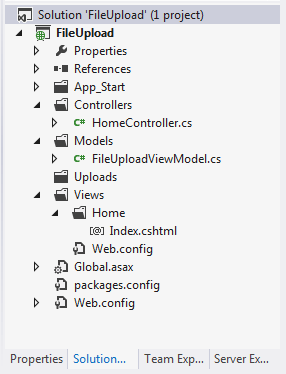
This is how my solution looks in Visual Studio
FileUpload-Solution Explorer

1. View Model (FileUploadViewModel.cs)
The view model has 2 properties. The UploadFilePath property will hold the path of the file to be uploaded. The Url property will hold the relative Url for displaying the image on the page.

using System.ComponentModel.DataAnnotations;
using System.Web;

namespace FileUpload.Models
{
    public class FileUploadViewModel
    {
        [Display(Name="File To Upload")]
        [Required]
        public HttpPostedFileBase UploadFilePath { get; set; }

        public string Url { get; set; }
    }
}

2. The Controller (HomeController.cs)
When a file is selected and submitted the HttpPost Index method checks the model is valid, i.e. a file has been chosen. If a file has been chosen the file is saved in the Uploads folder and the relative Url is populated in the Url property.

using FileUpload.Models;
using System.IO;
using System.Web.Mvc;

namespace FileUpload.Controllers
{
    public class HomeController : Controller
    {
        public ActionResult Index()
        {
            return View(new FileUploadViewModel());
        }

        [HttpPost]
        [ValidateAntiForgeryToken]
        public ActionResult Index(FileUploadViewModel model)
        {
            if (!ModelState.IsValid)
            {
                return View(model);
            }

            var fileName = Path.GetFileName(model.UploadFilePath.FileName);
            var uploadPath = Path.Combine(Server.MapPath("~/uploads/"), fileName);
            model.UploadFilePath.SaveAs(uploadPath);

            model.Url = Path.Combine("/uploads/", fileName);

            return View(model);
        }
    }
}

3. The View (Index.cshtml)
The view displays a ‘file’ type of input control.
One of the things that can catch you out is the form encryption type. Note how it is set to “multipart/form-data”, without this it will not work because your model will be invalid.

@model FileUpload.Models.FileUploadViewModel
@{
    ViewBag.Title = "Index";
}

<h2>Index</h2>

@using (Html.BeginForm("index", "home", FormMethod.Post, new { enctype = "multipart/form-data" }))
{  
     @Html.AntiForgeryToken()
     @Html.ValidationSummary()
    <fieldset>
        <legend>                
                <strong>Files</strong>
        </legend>
        
        <p>
            @Html.LabelFor(m => m.UploadFilePath)<br />
            <input type="file" id="UploadFilePath" name="UploadFilePath"/>
            <br />
            <input type="submit" value="Upload File"/>
        </p>
        <img src="@Model.Url" alt="Uploaded Image"/>
    </fieldset>
}

If no file is selected when the form is submitted the standard Required Field validation message will display ‘The FieldDisplayName is required’ which in this case is exactly ‘The File To Upload field is required’. Which is the same message displayed when the form encryption type is not set.

This is what is displayed when the application is initially running
File Upload Application Running
…and when an image file is uploaded
FileUpload-Uploaded
How Can This Be Enhanced Further?
We could

  • Add validation to limit file types
  • Have the upload locations configurable, different file types could be saved in different locations

Using the ASP.NET MVC ActionName attribute

Through convention in ASP.NET MVC the name of the controller and action forms part of the URL. Taking the example below

public class HomeController : Controller
{
    [HttpGet]
    public ActionResult TermsOfUse()
    {
        return View();
    }
}

The URL mydomain.com/home/termsofuse will display the view named TermsOfUse.cshtml from the Views/Home folder. **If using Visual Basic the view name will be TermsOfUse.vbhtml

Adding the ActionName attribute to the Action will change the name of the action to terms-of-use.

[HttpGet]
[ActionName("terms-of-use")]
public ActionResult TermsOfUse()
{
    return View();
}

So mydomain.com/home/termsofuse will not longer work but mydomain.com/home/terms-of-use will work.

Remember to rename your view to match the new action name as the view engine will now be looking for a view called terms-of-use.cshtml, instead of termsofuse.cshtml. The alternative to not renaming the views is to explicitly pass the physical name of the view in to the View method

return View("TermsOfUse");

This would need to be done not only in this action but every time the view needs to be displayed.