Configuration file mail settings

Sending emails is a very common activity for an application to perform. Using the System.Net section in the configuration file (app.config, web.config) to hold the settings makes things easier. There are a few different ways that the settings can be configured and I use a different method for when in development, user acceptance testing or live environments via XML transformation. I will not go into the details of XML transformations here, that is for another day.

Method 1
The first way is to send emails to localhost address 127.0.0.1.

<system.net>
    <mailSettings>
        <smtp deliveryMethod="Network">
            <network defaultCredentials="true" host="127.0.0.1"/>
        </smtp>
    </mailSettings></system.net>

To intercept and read the email grab a dummy SMTP server such as smtp4dev which, when installed sits in the system tray. The received messages can be quickly viewed, saved and the source/structure inspected, but what I find it does not do is format emails in a reader friendly manner which can make checking HTML emails difficult.

Method 2
You can configure emails to be sent to a local folder as an .eml file.

<system.net>
    <mailSettings>
        <smtp deliveryMethod="specifiedPickupDirectory">
            <specifiedPickupDirectory pickupDirectoryLocation="c:\maildrop"/>
        </smtp>
    </mailSettings>
</system.net> 

To view the messages use an application such as MailView. This is my current preferred option as emails can be easily read in both plain text and HTML format. What MailView does not do is refresh the email list as they drop into the designated folder.

Method 3
You can configure the settings to work through a local network SMTP server (e.g. exchange server).

<system.net>
    <mailSettings>
        <smtp deliveryMethod="network">
            <network host="mailserver.domain" defaultCredentials="true"/>
        </smtp>
    </mailSettings></system.net> 

Method 4
To configure an application for hosting on a third party host

<system.net>
    <mailSettings>
        <smtp>
            <network host="smtpout.secureserver.net"
                userName="XXX@XXXcom" password="Password*" port="25"/>
        </smtp>
    </mailSettings>
</system.net> 

For more information relating to mailsettings and descriptions on other attributes not used here see the MSDN article.

Arrays in VB.NET

I recently wrote a post on declaring arrays in C# and decided to convert it to VB. Below is code for a console app that demonstrates declaring Single Dimension Arrays, Multi Dimension Arrays and Arrays in Arrays, also known as Ragged or Jagged Arrays.

Module Module1

    Sub Main()
        'single dimension
        Dim ages(4) As Integer
        ages(0) = 3
        ages(1) = 6
        ages(2) = 20
        ages(3) = 34
        ages(4) = 67

        Console.WriteLine("Single Dimensional Array")
        For ageLoop = 0 To ages.Length - 1
            Console.WriteLine(String.Format("Item {0}: {1}", ageLoop, ages(ageLoop)))
        Next

        Console.Write(vbCrLf & vbCrLf & "Multi Dimensional Array" & vbCrLf)

        'multi dimensional
        Dim names(1, 1) As String
        names(0, 0) = "Andrew"
        names(0, 1) = "Bobby"
        names(1, 0) = "Susan"
        names(1, 1) = "Peter"

        Console.WriteLine("Row" + vbTab + "Col" + vbTab + "Value")
        For row = 0 To names.GetUpperBound(0)
            For col = 0 To names.GetUpperBound(row)
                Console.WriteLine(String.Format("{0}{1}{2}{3}{4}", row, vbTab, col, vbTab, names(row, col)))
            Next
        Next

        Console.Write(vbCrLf & vbCrLf & "Array of Arrays" & vbCrLf)

        ' Array of arrays
        Dim days()() As String = New String(1)() {}
        days(0) = New String(1) {}
        days(0)(0) = "Monday"
        days(0)(1) = "Wednesday"

        days(1) = New String(3) {}
        days(1)(0) = "Tuesday"
        days(1)(1) = "Friday"
        days(1)(2) = "Saturday"
        days(1)(3) = "Sunday"

        Console.WriteLine("Row" + vbTab + "Col" + vbTab + "Value")
        For row = 0 To days.GetUpperBound(0)
            For col = 0 To days(row).GetUpperBound(0)
                Console.WriteLine(String.Format("{0}{1}{2}{3}{4}", row, vbTab, col, vbTab, days(row)(col)))
            Next
        Next

        If (System.Diagnostics.Debugger.IsAttached) Then
            System.Diagnostics.Debugger.Break()
        End If

    End Sub

End Module

Below is code for another console app that shows how arrays can be initialised inline with declarations and a way to use For Each loops to iterate the array elements.

Module Module2

    Sub Main()
        'single dimension
        Dim ages() As Integer = New Integer(4) {3, 6, 20, 34, 67}

        Console.WriteLine("Single Dimensional Array")
        For Each age As Integer In ages
            Console.WriteLine(age)
        Next

        Console.Write(vbCrLf & vbCrLf & "Multi Dimensional Array" & vbCrLf)

        'multi dimensional
        Dim names(,) As String = New String(1, 1) {{"Andrew", "Bobby"}, {"Susan", "Peter"}}

        Console.WriteLine("Row" + vbTab + "Col" + vbTab + "Value")
        For Each name As String In names
            Console.WriteLine(name)
        Next

        Console.Write(vbCrLf & vbCrLf & "Array of Arrays" & vbCrLf)

        ' Array of arrays
        Dim days()() As String = { _
            New String() {"Monday", "Wednesday"}, _
            New String() {"Tuesday", "Friday", "Saturday", "Sunday"} _
        }

        Console.WriteLine("Row" + vbTab + "Col" + vbTab + "Value")
        For Each d() As String In days
            For Each day As String In d
                Console.WriteLine(day)
            Next
        Next

        If (System.Diagnostics.Debugger.IsAttached) Then
            System.Diagnostics.Debugger.Break()
        End If
    End Sub
End Module

The example application is available from Github here.

Generating a Machine Key For Configuration

I recently created an ASP.NET application which used Forms Authentication. In the interests of security I configured the machinekey properties of the web.config file. An explanation of the machinekey including its purpose and how to generate the keys is explained in this past Microsoft article. The article explains to create cryptographically random keys you use the System.Security.Cryptography.RNGCryptoServiceProvider class.

You use different length keys for different types of encryption.

  • For SHA1, set the validationKey to 64 bytes (128 hexadecimal characters).
  • For AES, set the decryptionKey to 32 bytes (64 hexadecimal characters).
  • For 3DES, set the decryptionKey to 24 bytes (48 hexadecimal characters).

Example code for generating keys is shown below;
Example in C#

using System;
using System.Text;
using System.Security;
using System.Security.Cryptography;

class App {
  static void Main(string[] argv) {
    int len = 128;
    if (argv.Length > 0)
      len = int.Parse(argv[0]);
    byte[] buff = new byte[len/2];
    RNGCryptoServiceProvider rng = new
                            RNGCryptoServiceProvider();
    rng.GetBytes(buff);
    StringBuilder sb = new StringBuilder(len);
    for (int i=0; i<buff.Length; i++)
      sb.Append(string.Format("{0:X2}", buff[i]));
    Console.WriteLine(sb);
  }
}

Example in VB.NET

Imports System
Imports System.Text
Imports System.Security
Imports System.Security.Cryptography

Module App
    Sub Main(ByVal argv() As String)
        Dim len As Integer = 128
        If argv.Length > 0 Then
            len = Integer.Parse(argv(0))
        End If
        Dim buff(len / 2) As Byte
        Dim rng As New RNGCryptoServiceProvider()
        rng.GetBytes(buff)
        Dim sb As New StringBuilder(len)
        Dim i As Integer
        For i = 0 To buff.Length - 1
            sb.Append(String.Format("{0:X2}", buff(i)))
        Next i
        Console.WriteLine(sb)
        Console.ReadLine()

    End Sub 'Main
End Module

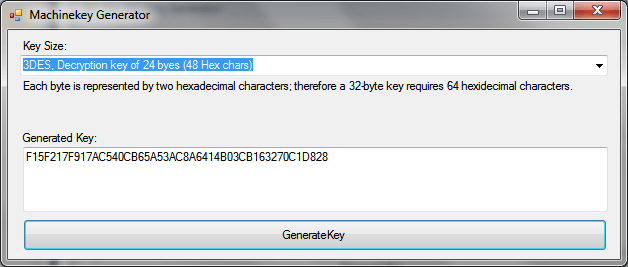
I have taken this code and created a more user friendly, though still pretty basic windows application.
machinekey generator

A copy of the code can be downloaded from MachineKeyGenerator repository on Github.