There are three ways of working with data and the EntityFramework, Database first, Model First and Code First.
Database First
If a database already exists classes that correspond its tables can be generated using the EntityFramework designer (in Visual Studio). Information about database schema like views, tables, columns and their relationships are stored in an .edmx file (as XML). The EntityFramework designer also has a graphical UI where the database objects can be modified, changes are reflected in the .edmx XML.
Model First
If a database does not yet exist a model can be created using the EntityFramework graphical designer
(in Visual Studio) which is stored in the .edmx file. From the model SQL statements can generated using the EntityFramework designer that will create the database and containing objects. As in Database First, the .edmx file stores the database objects and relationship information.
Code First
The Entity Framework can be used without the designer or an .edmx file. With Code First you can create your own classes that correspond tables is a database does not already exist. Or you can use the EntityFramework tools to generate the classes that correspond to existing tables. An .edmx file is not used to store the database object information, instead it is handled by convention and by a special API.
If you let Code First create the database, you can use Code First Migrations to automate the process of deploying the database to production as well as any later changes.
My purpose here is to demonstrate the Code First process and how to utilise data migrations in developing a data layer. I am working in a Class Library project, everything can be done in an ASP.NET web project or a Windows Forms project.
These are the steps being demonstrated.
- Set up the project with EntityFramework
- Create the models
- Create the database Context
- Specify the database connectionstring
- Enable migrations
- Modify the model
- Update the database
- More migrations
1. Set Up EntityFramework
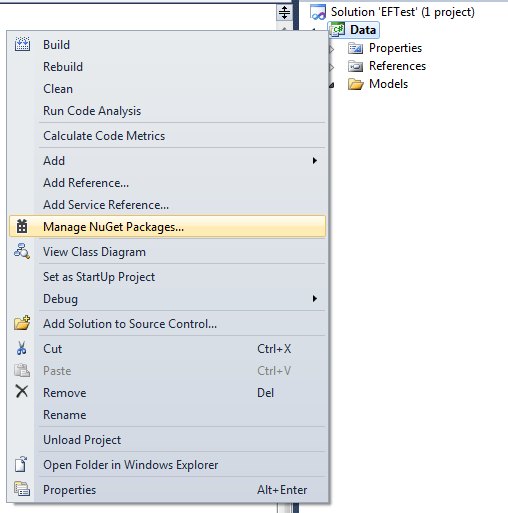
Right-click your project and select Manage NuGet Packages…
In the Manage NuGet Packages window search for entityframework and when you find it click Install.
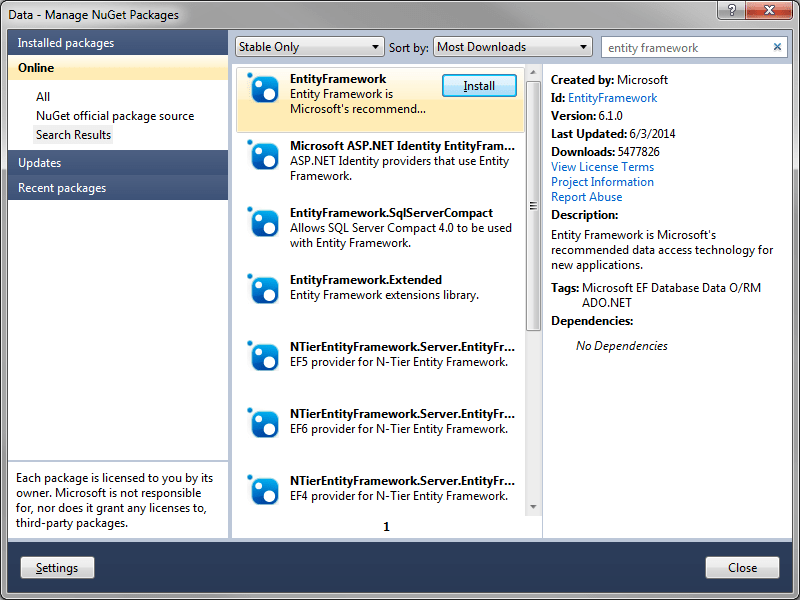
Accept the license terms.

EntityFramework will now be installed in the project with the required references.
2. Create The Models
The scenario we will be working through is that of simple library data. We will be working off the following decisions;
- A library has many books
- There may be more than one copy of each book, with each copy being unique.
- A book may have more than one author.
Based on the above decisions we can create the models represented by this class digram.

I have included the full code for the models for your copy and pasting, firstly the Book model
using System.Collections.Generic;

namespace Data.Models
{
    public class Book
    {
        public int BookId { get; set; }
        public string Title { get; set; }
        public virtual ICollection<Author> Authors{ get; set; }
        public virtual ICollection<Copy> Copies { get; set; }
    }
}
and the book Copy model
namespace Data.Models
{
    public class Copy
    {
        public int CopyId { get; set; }
        public int BookId { get; set; }
        public string Reference { get; set; }
    }
}
and finally the Author model
namespace Data.Models
{
    public class Author
    {
        public int AuthorId { get; set; }
        public string FirstName { get; set; }
        public string LastName { get; set; }
    }
}
3. Create The Database Context
using System.Data.Entity;
using System.Data.Entity.ModelConfiguration.Conventions;
using Data.Models;

namespace Data
{
    public class DataContext:DbContext
    {
        public DbSet<Book> Books { get; set; }
        public DbSet<Copy> Copies { get; set; }
        public DbSet<Author> Authors { get; set; }

        protected override void OnModelCreating(DbModelBuilder modelBuilder)
        {
            modelBuilder.Conventions.Remove<PluralizingTableNameConvention>();
        }
    }
}
The modelBuilder.Conventions.Remove statement in the OnModelCreating method prevents table names from being pluralized. If you didn’t do this, the generated tables would be named Books, Copys, and Authors. We want them to be Book, Copy, and Author. The pluralization of table names is a discussion that has been going on for a long time. The point is you can choose how the tables are named.
4. Specify The Database Connectionstring
If a configuration file (app.config/web.config) file does not exist add one to your project. The connection string will be dependent on the type of SQL server database to be used.
In Visual Studio 2012 and later versions, LocalDB is installed by default with Visual Studio. In Visual Studio 2010 and earlier versions, SQL Server Express (without LocalDB) is installed by default with Visual Studio; you have to install it manually if you’re using Visual Studio 2010.
Typically SQL Server Express is not used for production web applications. LocalDB in particular is not recommended for production use with a web application because it is not designed to work with IIS.
Whichever is being used, add the connection string to the configuration file, below are a couple of exmaples
As I am using VS2010 and SQL Express my connection string looks like this
 <connectionStrings>
    <add name="DataContext"
        connectionString="Data Source=.\SQLEXPRESS;Initial Catalog=EFTest;Integrated Security=SSPI"
        providerName="System.Data.SqlClient" />
  </connectionStrings>
Notice that the connectionstring name ‘DataContext’ is the same as the name of the DataContext class. This is how EntityFramework knows what the database connection is.
5. Enable Migrations
In the Package Manager Console Window select the project containing the models
The first command we need to run is the enable-migrations command. The following command will enable migrations on the previously selected project.
PM> enable-migrations -contexttypename DataContext
You will see a message something like the below
Checking if the context targets an existing database...
Code First Migrations enabled for project Data.
As the message says EntityFramework has checked whether a database already exists, if it doesn’t it will not created yet.
Also a Migrations folder will have been added to the project which is where it will save the details of each migration in a date stamped folder.

In the constructor of the class the AutomaticMigrationsEnabled boolean propery is set to false. If set to true the database will be updated automatically when the application is run without running any of the following commands. If enabling automatic migrations care must be taken to maintain data integrity, especially if removing properties from models during development which are already in the production system. I prefer not to allow automatic migrations, as a result scripts have to be manually run against the production database when the application is updated. The Seed method is where code can be written to initialise the data.
namespace Data.Migrations
{
    using System;
    using System.Data.Entity;
    using System.Data.Entity.Migrations;
    using System.Linq;

    internal sealed class Configuration : DbMigrationsConfiguration<Data.DataContext>
    {
        public Configuration()
        {
            AutomaticMigrationsEnabled = false;
        }

        protected override void Seed(Data.DataContext context)
        {
            //  This method will be called after migrating to the latest version.

            //  You can use the DbSet<T>.AddOrUpdate() helper extension method
            //  to avoid creating duplicate seed data. E.g.
            //
            //    context.People.AddOrUpdate(
            //      p => p.FullName,
            //      new Person { FullName = "Andrew Peters" },
            //      new Person { FullName = "Brice Lambson" },
            //      new Person { FullName = "Rowan Miller" }
            //    );
            //
        }
    }
}
6. Modify The Model
Models will never be complete first time round. So lets modify the model by adding a publisher property.
public class Book
{
    public int BookId { get; set; }
    public string Title { get; set; }
    public string Publisher { get; set; }
    public virtual ICollection<Author> Authors{ get; set; }
    public virtual ICollection<Copy> Copies { get; set; }
}
To make the migration engine aware of the database change we execute the add-migration command in the Package Manager Console window.
PM> add-migration BookPublisherAdded
Here I am only passing a single parameter which is the name identifying the migration. This time a message similar to the following will be displayed.
Scaffolding migration 'BookPublisherAdded'.
The Designer Code for this migration file includes a snapshot of your current Code First model.
This snapshot is used to calculate the changes to your model when you scaffold the next migration.
If you make additional changes to your model that you want to include in this migration,
then you can re-scaffold it by running 'Add-Migration BookPublisherAdded' again.
This is telling us that if we make more changes to our model we can include them in the migration by re-running the same command. There is now a new date stamped folder in the Migrations folder of the solution.
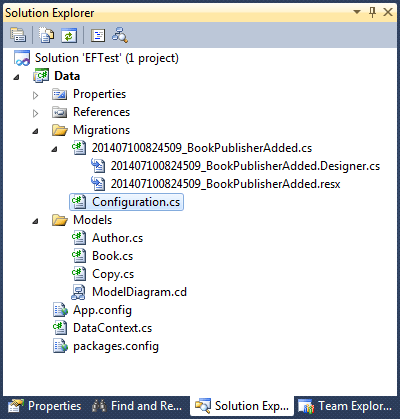
The folder contains a code file defining the changes we have just added.
// <auto-generated />
namespace Data.Migrations
{
    using System.CodeDom.Compiler;
    using System.Data.Entity.Migrations;
    using System.Data.Entity.Migrations.Infrastructure;
    using System.Resources;

    [GeneratedCode("EntityFramework.Migrations", "6.1.0-30225")]
    public sealed partial class BookPublisherAdded : IMigrationMetadata
    {
        private readonly ResourceManager Resources = new ResourceManager(typeof(BookPublisherAdded));

        string IMigrationMetadata.Id
        {
            get { return "201407100824509_BookPublisherAdded"; }
        }

        string IMigrationMetadata.Source
        {
            get { return null; }
        }

        string IMigrationMetadata.Target
        {
            get { return Resources.GetString("Target"); }
        }
    }
}
7. Update The Database
The final command to run will either create the database if it does not already exist, or update the existing database. In the Package Manager Console execute the update database command
PM> update-database
The following message will be displayed
Specify the '-Verbose' flag to view the SQL statements being applied to the target database.
Applying explicit migrations: [201407100824509_BookPublisherAdded].
Applying explicit migration: 201407100824509_BookPublisherAdded.
Running Seed method.
The database will now be updated and the seed method re-run which happens every time the database is updated.
More Migrations
As development continues and more changes are made to the models repeat steps 6. Modify the model and 7. Update the database to keep the database in sync with the models.

You must be logged in to post a comment.