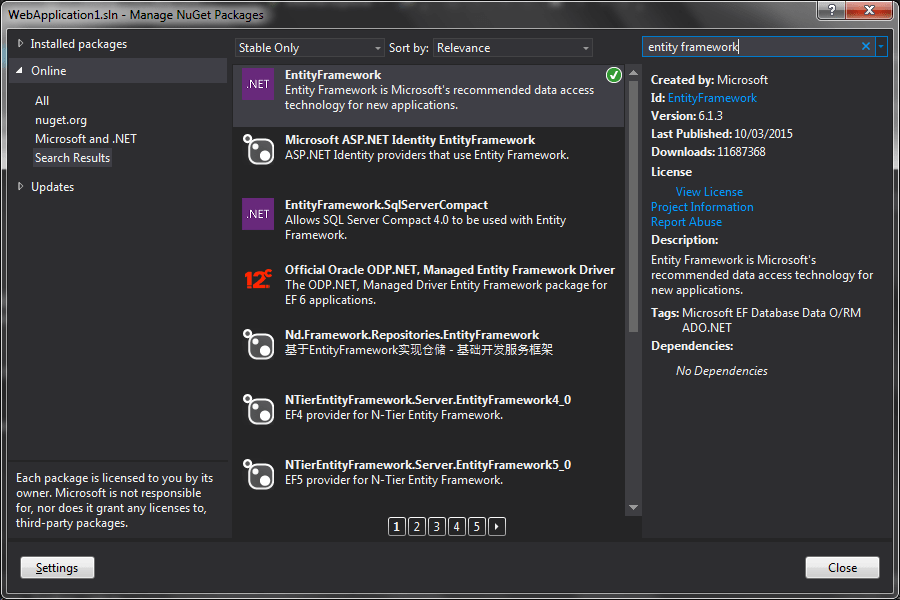
This post is part of a mini series on using EntityFramework (EF). If you do not have EF installed go to Part 1: Introduction and Setup to see what (basic) steps we took to get EF installed.
In this part we are going to use Code-First methods to start model building, then eventually connecting to the database . This is not the only way and you do not have to do things in exactly the same order as I have but if you follow along you should have a working version at the end.
Database
Firstly, create a database at your preferred location. Once you have a database add the connection string to the web.config file. I added a database to the App_Data folder so this is what the connectionsString definition look like in my web.config file.
  <connectionStrings>
    <add name="DBConn" connectionString="Data Source=(LocalDB)\MSSQLLocalDB;AttachDbFilename=|DataDirectory|\DB.mdf;Integrated Security=True"
         providerName="System.Data.SqlClient" />
  </connectionStrings>
Next, add a class which inherits from DBContext. An instance of DBContext, LibraryDBContext in this example, is used to perform CRUD operations against a database. To read up on DBContext see these articles
http://www.entityframeworktutorial.net/EntityFramework4.3/dbcontext-vs-objectcontext.aspx
namespace WebApplication2.Models
{
    public class LibraryDBContext:DbContext
    {
        public LibraryDBContext() : base("DBConn")
        { }

        public DbSet<Book>Books{ get; set; }
    }
}
This gives sufficient Entity Framework code to enable our application to access a database.
The Model
Now we will start the model by creating a Book entity. Create a Book class in the Models folder of your application.
namespace WebApplication2.Models
{
    public class Book
    {
        public int BookId { get; set; }
        public string Author { get; set; }
        public string Title { get; set; }
    }
}
Following Code-First conventions, because we have defined an property called BookId (class name ‘Book’ plus ‘Id’) Entity Framework will nominate this property as an identity column when the database tables are generated. If we had a property simply named Id, Entity Framework would have nominated that as the identity and created an identity column called Id.
Displaying Book Info
Add a Controller to the application, I have called it BooksController. The Index action retrieves all the books from what will be the Books table.
using System.Collections.Generic;
using System.Linq;
using System.Web.Mvc;
using WebApplication2.Models;

namespace WebApplication2.Controllers
{
    public class BooksController : Controller
    {
          public ActionResult Index()
        {
            var books = new List<Book>();
            using (var db = new LibraryDBContext())
            {
                books = db.Books.ToList();
            }
            return View(books);
        }
    }
}
The last code related change is to create a View for the Index Action to display all the books.

@model IEnumerable<WebApplication2.Models.Book>
    @Html.ActionLink("Create New", "Create")
<table class="table">
<tr>
<th>
            @Html.DisplayNameFor(model => model.Author)</th>
<th>
            @Html.DisplayNameFor(model => model.Title)</th>
<th></th>
</tr>
@foreach (var item in Model) {
<tr>
<td>
            @Html.DisplayFor(modelItem => item.Author)</td>
<td>
            @Html.DisplayFor(modelItem => item.Title)</td>
<td>
            @Html.ActionLink("Edit", "Edit", new { id=item.BookId }) |
            @Html.ActionLink("Details", "Details", new { id=item.BookId }) |
            @Html.ActionLink("Delete", "Delete", new { id=item.BookId })</td>
</tr>
}</table>
Running the Application
The application should build at this point. Currently we have a database that contains no tables. If you run the application now The database/tables will only be created/modified on a read/write action. So run the application and navigate to your controller (e.g. \books). Because the Index action of the Books controller contains code that retrieves data via the inherited DBContext class, and because Entity Framework knows there are models with no corresponding database table, the tables will be created with columns types that match the model properties.


You must be logged in to post a comment.