Using DIVs To Scroll A Grid Of Data In A Webform

I would consider this a lazy mans approach to scrolling a grid, it is quick and easy to implement but there are some limitations. It will work for smaller amounts of data where column sorting and paging is not required. Although column sorting can be implemented with a little extra work.

For demo purposes the data I am using is generated by populating a list of Comment objects in the page load event.
Here is the Comment class.

public class Comment 
{
    public DateTime CreatedDate{ get; set; }
    public string UserID{ get; set; }
    public string CommentText{ get; set; }
}

And the data population. Notice how the data is bound to the grid in the usual manner.

protected void Page_Load(object sender, EventArgs e)
{
    var comments = new List<Comment>(){
        new Comment{CreatedDate=DateTime.Now, UserID="John.Jones", CommentText="This request has been approved"},
        new Comment{CreatedDate=DateTime.Now.AddDays(-1), UserID="John.Jones", CommentText="The value is incorrect"},
        new Comment{CreatedDate=DateTime.Now.AddDays(-2), UserID="Phil.Peters", CommentText="Please confirm the quantity required"},
        new Comment{CreatedDate=DateTime.Now.AddDays(-3), UserID="Merry.Berry", CommentText="The request has been amended"},
        new Comment{CreatedDate=DateTime.Now.AddDays(-4), UserID="Peter.Piper", CommentText="Rejected at level 1"},
        new Comment{CreatedDate=DateTime.Now.AddDays(-5), UserID="Fred.Flinstone", CommentText="Initial Submission"}
    };
    CommentsGrid.DataSource=comments;
    CommentsGrid.DataBind();
}

This is how the grid will display on the WebForm.

scrolling-grid

The column headers are cells in a single row table. The header cells and datagrid columns are fixed to the same width to guarantee their alignment.
The following diagram shows how the gridview will sit ‘behind’ the viewable area of the comments-grid-container DIV by virtue of the fixed heights and widths each are given and the overflow attributes of the comments-grid-container DIV.

div-layout
Here is the HTML code used. Although a Datagrid has been used in this case it is possible to have other elements e.g. a Table, Image, another DIV instead.

<form id="form1" runat="server">
    <div class="comments-container ">
        <div class="comments-header-container">
            <table cellspacing="0" cellpadding="0" rules="all" border="1" id="tblHeader" class="comments-header">
            <tr>
                <td style="width: 150px; text-align: center; color: black">Date</td>
                <td style="width: 150px; text-align: center; color: black">User</td>
                <td style="width: 400px; text-align: center; color: black">Comment</td>
            </tr>
        </table>
        </div>
        <div class="comments-grid-container ui-widget-content">
            <asp:GridView ID="CommentsGrid" runat="server" AutoGenerateColumns="False" ClientIDMode="Static" HeaderStyle-CssClass="hidden" GridLines="None" EmptyDataText="There are no comments to display." RowStyle-VerticalAlign="Top">
                <AlternatingRowStyle BackColor="#EEEEEE" />
                <Columns>
                    <asp:BoundField ItemStyle-Width="150px" DataField="CreatedDate">
                        <ItemStyle Width="150px"></ItemStyle>
                    </asp:BoundField>
                    <asp:BoundField ItemStyle-Width="150px" DataField="UserId">
                        <ItemStyle Width="150px"></ItemStyle>
                    </asp:BoundField>
                    <asp:BoundField ItemStyle-Width="400px" DataField="CommentText">
                        <ItemStyle Width="400px"></ItemStyle>
                    </asp:BoundField>
                </Columns>
            </asp:GridView>
        </div>
    </div>
</form>

I have added a resizable jQuery feature to the DIV surrounding the Datagrid with properties which restrict to only allow the height to be resized.

<script src="https://ajax.googleapis.com/ajax/libs/jquery/1.12.0/jquery.min.js"></script> 
<script src="https://ajax.googleapis.com/ajax/libs/jqueryui/1.11.4/jquery-ui.min.js" type="text/javascript"></script> 
<script type="text/javascript">
    $(".comments-grid-container").resizable({
        maxHeight: 300,
        maxWidth: 717,
        minHeight: 75,
        minWidth: 717
	});
</script>

This is now where the magic happens, in the CSS. The wdiths and heights can be changed to suit the layout of the parent page/element.

<link rel="stylesheet" href="https://ajax.googleapis.com/ajax/libs/jqueryui/1.11.4/themes/smoothness/jquery-ui.css"/>

<style>
	.comments-container {
		display: inline;
		width: 750px;
		left: 170px;
		position: relative;
	}

	.comments-header-container {
		height: 20px;
		width: 600px;
		margin: 0 !important;
		padding: 0;
	}

	.comments-header {
		font-family: Arial;
		font-size: 10pt;
		width: 700px;
		color: white;
		border-collapse: collapse;
		height: 100%;
	}

	.comments-grid-container {
		height: 75px;
		width: 717px;
		overflow-y: scroll;
		overflow-x: hidden;
	}

	.hidden {
		display: none;
	}
</style>

As I mentioned at the beginning, this is a quick and easy approach which works but with some limitations. Due to these limitations there a probably fewer scenarios where this approach will work.

How Disabled and ReadOnly State Affect Postback of Textboxes In ASP.Net

There are certain scenarios where Textbox webcontrols will not post the Text value enter by the user back to the server. To understand these scenarios I created the following form consisting of 4 textboxes. On the first textbox (ReadOnlyTextBox) I set the ReadOnly property to true using the properties window. On the second textbox (DisabledTextBox) I set the enabled property to false using the properties window. On the next two textboxes I did not set the ReadOnly or Eanbled properties, but I did add attributes via C# code in the Form_Load event as will be highlighted later. Here is the complete form.

 
<p>
    <asp:TextBox ID="ReadOnlyTextBox" ClientIDMode="Static" runat="server" ReadOnly="True"></asp:TextBox>
</p>
<p>
    <asp:TextBox ID="DisabledTextBox" ClientIDMode="Static" runat="server" Enabled="False"></asp:TextBox>
</p>
<p>
    <asp:TextBox ID="ReadOnlyByAttributeTextBox" ClientIDMode="Static" runat="server"></asp:TextBox>
</p>
<p>
    <asp:TextBox ID="DisabledByAttributeTextBox" ClientIDMode="Static" runat="server"></asp:TextBox>
</p>
<p>
    <asp:Button ID="SubmitButton" runat="server" OnClick="SubmitButton_Click" Text="Submit" /> 
    <asp:Button ID="ClearButton" runat="server" Text="Clear Fields" OnClick="ClearButton_Click" />
</p>
<p>
    <asp:Button ID="PopulateFieldsButton" runat="server" Text="Populate Fields (ServerSide)" OnClick="PopulateFieldsButton_Click" />
    <input type="button" value="Populate Fields (ClientSide)" onclick="Populate();" />
</p>
<asp:Literal ID="OutputDisplay" runat="server"></asp:Literal>

I also added a basic javascript function to the page to set the Text value of the 4 text boxes for comparing the difference in postback results when the textboxes are populated via server side code or client side code.

<script type="text/javascript">
    function Populate() {
        var readOnly = document.getElementById("ReadOnlyTextBox");
        var disabled = document.getElementById("DisabledTextBox");
        var readOnly2 = document.getElementById("ReadOnlyByAttributeTextBox");
        var disabled2 = document.getElementById("DisabledByAttributeTextBox");

        readOnly.value = "ReadOnly By Property";
        disabled.value = "Disabled By Property";
        readOnly2.value = "ReadOnly By Atribute";
        disabled2.value = "Disabled By Attribute";
    }
</script>

Here is the C# code for the ASP.NET page. In the Page_Load event the readonly and disabled attributes are set for the relevant two textboxes. When the form is submitted the values of the tesxtboxes are read and displayed in a Literal webcontrol. There is also a PopulateFieldsButton_Click event to populate the tesxtboxes from server side.

protected void Page_Load(object sender, EventArgs e)
{
    ReadOnlyByAttributeTextBox.Attributes.Add("readonly", "readonly");
    DisabledByAttributeTextBox.Attributes.Add("disabled", "disabled");

	// uncomment below to compare effect of populating TextBoxes in form load at server side
    //SetTextBoxes();
}
      
protected void SubmitButton_Click(object sender, EventArgs e)
{
    var output = new StringBuilder();
    output.Append("Posted Values<br/>");
    output.AppendFormat("ReadOnly By Property TextBox: {0}<br/>", ReadOnlyTextBox.Text);
    output.AppendFormat("Disabled By Property TextBox: {0}<br/>", DisabledTextBox.Text);
    output.AppendFormat("ReadOnly By Attribute TextBox: {0}<br/>", ReadOnlyByAttributeTextBox.Text);
    output.AppendFormat("Disabled By Attribute TextBox: {0}<br/>", DisabledByAttributeTextBox.Text);
    OutputDisplay.Text = output.ToString();
}

protected void PopulateFieldsButton_Click(object sender, EventArgs e)
{
    SetTextBoxes();
}

protected void ClearButton_Click(object sender, EventArgs e)
{
    DisabledTextBox.Text = String.Empty;
    ReadOnlyTextBox.Text = String.Empty;
    ReadOnlyByAttributeTextBox.Text = String.Empty;
    DisabledByAttributeTextBox.Text = String.Empty;
}

private void SetTextBoxes()
{
    ReadOnlyTextBox.Text = "ReadOnly By Property";
    DisabledTextBox.Text = "Disabled By Property";
    ReadOnlyByAttributeTextBox.Text = "ReadOnly By Attribute";
    DisabledByAttributeTextBox.Text = "Disabled By Attribute";
}

On to the tests.
Test 1 – Populate server side.

  • Ensure the fields are empty by clicking the Clear Fields button
  • Click the Populate Fields (ServerSide)
  • Click the Submit Button

The results show the Text value was posted back to all except the textbox with the disabled attribute set by C# code.

ReadOnly By Property TextBox: ReadOnly By Property
Disabled By Property TextBox: Disabled By Property
ReadOnly By Attribute TextBox: ReadOnly By Attribute
Disabled By Attribute TextBox: 

Test 2 – Populate client side

  • Ensure the fields are empty by clicking the Clear Fields button
  • Click the Populate Fields (ClientSide)
  • Click the Submit Button

The results show the Text value was posted back to the server only on the textbox with the readoly attribute set by C# code.

ReadOnly By Property TextBox: 
Disabled By Property TextBox: 
ReadOnly By Attribute TextBox: ReadOnly By Atribute
Disabled By Attribute TextBox: 

So, if you want the Text value of the textbox to be posted to the server and you do not want the user to modify the contents of the textbox use C# code to set the ReadOnly attribute.

Using a shared page to retrieve and display a pdf file

We had a situtation recently where we needed to allow users to download a pdf file from our server but we did not want to show the URL in the browser window. Although there are many ways to do this we opted to use an aspx page to retrieve the file and present it to the user. Knowing we will probably use this method againe in the application we decided to make sure the page was reusable.

The code below is of a webform load event. There are two querystring parameters, obviously these parameters are relevant to our requirements and you may user different parameters. The t parameter is the token, which is passed to the backend server as an identifier e.g. eventid, certificateid or something similar. The r parameter is to identify which url should be called.

protected void Page_Load(object o, EventArgs e)
{
    var token = Request.QueryString["t"];
    var report = Request.QueryString["r"];
    var URL = string.Empty;

    switch (report.ToLower())
    {
        case "u1":
            URL = System.Configuration.ConfigurationManager.AppSettings["url1"];
            break;
        case "u2":
            URL = System.Configuration.ConfigurationManager.AppSettings["url2"];
            break;
    }

    var fullURL = string.Format("{0}{1}", URL, token);
    var client = new System.Net.WebClient();
    try
    {
        Byte[] buffer = client.DownloadData(fullURL);
        if (buffer != null)
        {
            Response.ContentType = "application/pdf";
            Response.AddHeader("content-length", buffer.Length.ToString());
            Response.BinaryWrite(buffer);
        }
    }
    catch (System.Net.WebException ex)
    {
        if (((System.Net.HttpWebResponse)ex.Response).StatusCode == System.Net.HttpStatusCode.NotFound)
        {
            Server.Transfer("/404.aspx", false);
        }
    }
}

For us this page was called pdf.aspx, possible URLs this page will be called with are;

http://www.somedomain.com/pdf.aspx?t=1234&r=u1
http://www.somedomain.com/pdf.aspx?t=RY6N-UX6M&r=u2

It is possible to leave the token parameter blank if an identifier is not needed.

http://www.somedomain.com/pdf.aspx?t=&r=u2

The URLs of the backend server are stored in the web.config appSetting section, possible examples are.

<appSettings>
    <add key="url1" value="http://somebackendserver/{0}" />
    <add key="url2" value="http://anotherserver.addomain.net/certificates.aspx?ref={0}" />
</appSettings>

I have replaced the actual appSettings used with url1 and url2, your appSettings will have meaningful names.
The pdf file is downloaded to a byte array and presented to the user. If a WebException occurs the status of the response is checked and if a HttpStatusCode.NotFound status was returned from the backend server the applications 404 page is displayed.

There are a number of ways to extend this code and functionality relevant to any purpose.

Using hyphens in MVC urls for good SEO

Following the Convention over Configuration principle in an ASP.NET MVC application the controller and action names form part of the URL. So commonly a URL of http://www.example.com/account/forgotpassword would break down to;
Domain: example.com
Controller: account
Action: forgotpassword
It is good SEO practise to separate words in a URL with hyphens. One reason for doing this is due to Google and how it interprets the URL. Google will not see underscores as a word separator, so forgot_password will be seen as forgotpassword, there is no benefit in having underscores at all.

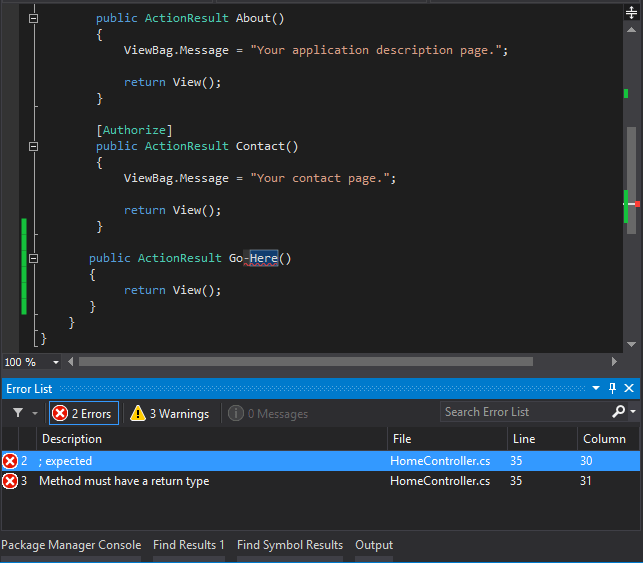
When it comes to an MVC application you cannot have hyphens in the action names, the code will not even compile.
hyphen-error

Fortunately there is a way to have hyphens in URLs by using the ActionName attribute on an action method. This method redefines the name used to access the action both from URL or direct code.

[AllowAnonymous]
[ActionName("forgot-password")]
public ActionResult ForgotPassword()
{
    return View("forgotpassword");
}

[AllowAnonymous]
[HttpPost]
[ActionName("forgot-password")]
public ActionResult ForgotPassword(ResetPasswordViewModel model)
{
    if (!ModelState.IsValid)
    {
        return View("forgotpassword", model);
    }

    // other code here

    return View("forgotpassword", model);
}

You can see here both the HttpGet and HttpPost action methods have been decorated with the ActionName attribute. When calling this ForgotPassword action the url will be

http://www.example.com/account/forgot-password

You can no longer call the action without a hyphen. If calling the action from within code, again you will need to use the new redefined action name

// in a controller
RedirectToAction("forgot-password");

// from a link
@Html.ActionLink("Forgot Password","forgotten-password","account")

You will also notice in the top example that the action method signature still contains a method name of ForgotPassword which is the same as the view name. Normally due to the conventions built into MVC you would not need to specify the view name

public ActionResult ForgotPassword()
{
    return View();
}

as the action name has been redefined, when using View() method to display the view the engine will be looking for a view called forgot-password. That is fine of you view is called forgot-password but if not you will need to pass the name of the view as a parameter to the View() method.

[ActionName("forgot-password")]
AtionResult ForgotPassword()
{
    return View("ForgotPassword");
}

Another JQuery Autocomplete Example With ASP.NET Webforms

This is a quick run through of how to implement a jQuery autocomplete with webforms. The lookup data consists of about 600 items and changes very rarely so I want to load the data only once when the page loads rather than sending a query to the database as the user types in the input box.

On the Webform is a input box which will have autocomplete feature.

<div>
    <asp:Label ID="Label5" runat="server" Text="Depot Code:" AssociatedControlID="txtDepotCode" />
    <asp:TextBox ID="txtDepotCode" runat="server" ClientIDMode="Static" TabIndex="5" />
    <asp:TextBox ID="txtDepotName" runat="server" ClientIDMode="Static" TabIndex="6" />
</div>

In this javascript code a webservice is being called to retrieve the items via an ajax call. When the data is returned it is set as the source data for the autocomplete input box.

$(function () {
    $.ajax({
        type: "POST",
        contentType: "application/json; charset=utf-8",
        url: "creditqueryservice.asmx/GetDepots",
        dataType: "json"
    }).done(function (response) {
        var data = $.map(response.d, function (item) {
            return {
                value: item.DepotCode,
                label: item.DepotCode + ' - ' + item.DepotName
            };
        });

        $("#txtDepotCode").autocomplete({
            source: data,
            minLength: 2,
            select: function(event, ui) { 
                // do something here.  ui parameter holds the values of the item selected
                $("#" + this.id).val(ui.item.value);
                $("#" + this.id + "name").val(ui.item.DepotName);
                return false;
            }
        });
    });
});

The depots are retrieved via a repository (_branchesRepo) variable in the class. Retrieve the data suitable to your application.

[WebMethod]
public List<Depot> GetDepots()
{
    var depots = new List<Depot>();
     if (depots == null || depots.Count == 0)
    {
        depots = _branchesRepo.GetBranches();
    }
    return depots;
}

To validate what the user has entered the autocomplete data can retrieved as in the code below.

var source = $("#txtDepotCode").autocomplete("option", "source");

Now you can compare the value entered with the values in the list. You would really only do this if the user typed into the input box without selecting an item from the matched list.