Using hyphens in MVC urls for good SEO

Following the Convention over Configuration principle in an ASP.NET MVC application the controller and action names form part of the URL. So commonly a URL of http://www.example.com/account/forgotpassword would break down to;
Domain: example.com
Controller: account
Action: forgotpassword
It is good SEO practise to separate words in a URL with hyphens. One reason for doing this is due to Google and how it interprets the URL. Google will not see underscores as a word separator, so forgot_password will be seen as forgotpassword, there is no benefit in having underscores at all.

When it comes to an MVC application you cannot have hyphens in the action names, the code will not even compile.
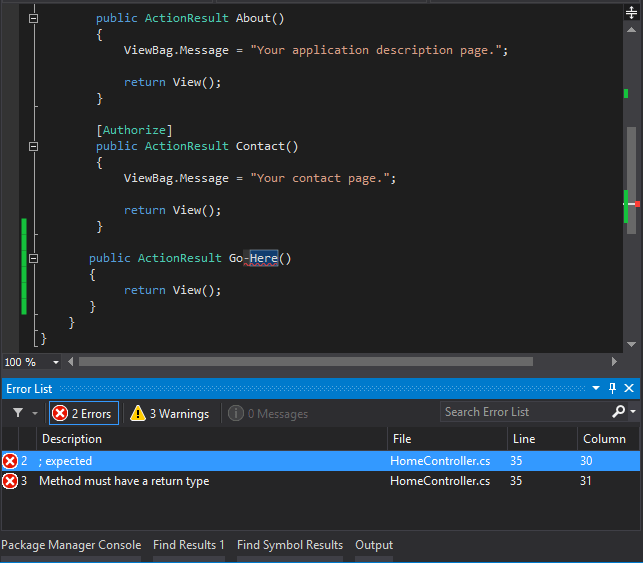
hyphen-error

Fortunately there is a way to have hyphens in URLs by using the ActionName attribute on an action method. This method redefines the name used to access the action both from URL or direct code.

[AllowAnonymous]
[ActionName("forgot-password")]
public ActionResult ForgotPassword()
{
    return View("forgotpassword");
}

[AllowAnonymous]
[HttpPost]
[ActionName("forgot-password")]
public ActionResult ForgotPassword(ResetPasswordViewModel model)
{
    if (!ModelState.IsValid)
    {
        return View("forgotpassword", model);
    }

    // other code here

    return View("forgotpassword", model);
}

You can see here both the HttpGet and HttpPost action methods have been decorated with the ActionName attribute. When calling this ForgotPassword action the url will be

http://www.example.com/account/forgot-password

You can no longer call the action without a hyphen. If calling the action from within code, again you will need to use the new redefined action name

// in a controller
RedirectToAction("forgot-password");

// from a link
@Html.ActionLink("Forgot Password","forgotten-password","account")

You will also notice in the top example that the action method signature still contains a method name of ForgotPassword which is the same as the view name. Normally due to the conventions built into MVC you would not need to specify the view name

public ActionResult ForgotPassword()
{
    return View();
}

as the action name has been redefined, when using View() method to display the view the engine will be looking for a view called forgot-password. That is fine of you view is called forgot-password but if not you will need to pass the name of the view as a parameter to the View() method.

[ActionName("forgot-password")]
AtionResult ForgotPassword()
{
    return View("ForgotPassword");
}

Unexpected “string” keyword after “@” character. Once inside code, you do not need to prefix constructs like “string” with “@”.

One feature of the Razor Engine which is intended to assist developers is the built in ability to implicitly interpret the server code from the client markup. For the most part it works well but there may be some instances where the engine is unable to do this and a little help from the developer is needed. If you receive the following error this may be one of those times

Unexpected “string” keyword after “@” character. Once inside code, you do not need to prefix constructs like “string” with “@”.

There are a couple of detailed articles by Scott Guthrie explaining how Razor separates the code blocks from the page markup.

ASP.NET MVC 3: Implicit and Explicit code nuggets with Razor

ASP.NET MVC 3: Razor’s @: and syntax

Here is an example of code that would product the above error

@if (Model.Products[counter].Depots.ContainsKey(d))
{
    @string.Join(", ", Model.Products[counter].Depots[d].ToArray())
}

In short Razor looks for tags in the code block, in the above code the @if statement starts a code block. This block does not have any tags, only a code nugget (single line of code) where an @ sign indicates the start of a another code block. Razor sees the @ starting the second code block as unnecessary. If you were to remove the @ altogether on the @string.Join line Razor would see this line as C# server code and expect the line to be followed by a semicolon (;).

@if (Model.Products[counter].Depots.ContainsKey(d))
{
    string.Join(", ", Model.Products[counter].Depots[d].ToArray());
}

Now your application will run without exception but this modified line will not render any output to the view as it will be seen as code where the string returned by the Join method is not assigned to a variable or anything.
There are two key solutions.
Solution 1
Wrap the content line around tags

<span>
@string.Join(", ", Model.Products[counter].Depots[d].ToArray())
</span>

Solution 2
Wrap the line in an element to explicitly identify the content.

<Text>@string.Join(", ", Model.Products[counter].Depots[d].ToArray())</Text>

A element can contain a mix of text and code nuggets. so this will also work for both solutions,

<Text>This is a depot @string.Join(", ", Model.Products[counter].Depots[d].ToArray())</Text>

Make sure to read the articles mentioned for additional information.

Using CDN in your MVC Bundling Configurations

There are advantages to referencing resources via a CDN. Bundling can be set up in such a way to use local references when debugging and CDN when in release mode. Here we will see how to set up bundling for jQuery and jQueryUI. If you do not have a local version of the libraries you can install them via NuGet using these commands in the Package Manager Console window.

Install-Package jQuery -Version 1.11.3
Install-Package jQuery.UI.Combined -Version 1.11.4

Here a specific version has been referenced to match the CDN version of the files on googleapis

<script src="https://ajax.googleapis.com/ajax/libs/jquery/1.11.3/jquery.min.js"></script>
<script src="https://ajax.googleapis.com/ajax/libs/jqueryui/1.11.4/jquery-ui.min.js"></script>

<!-- And the related css file -->
<link rel="stylesheet" href="https://ajax.googleapis.com/ajax/libs/jqueryui/1.11.4/themes/smoothness/jquery-ui.css">

From these references the BundleConfig will look something like this

using System.Web;
using System.Web.Optimization;

namespace ApplicationNamespace
{
    public class BundleConfig
    {
        // For more information on Bundling, visit http://go.microsoft.com/fwlink/?LinkId=254725
        public static void RegisterBundles(BundleCollection bundles)
        {
            bundles.UseCdn = true;

            bundles.Add(new ScriptBundle("~/bundles/jQuery",
                "https://ajax.googleapis.com/ajax/libs/jquery/1.11.3/jquery.min.js").Include(
                "~/scripts/jquery-{version}.js")); 

            bundles.Add(new ScriptBundle("~/bundles/jQuery",
                "https://ajax.googleapis.com/ajax/libs/jqueryui/1.11.4/jquery-ui.min.js").Include(
                "~/scripts/jquery-ui-{version}.js")); 
        }	
    }
}

Notice in the BundleConfig class that the UseCdn property has been set to true, specifying that we want to use the CDN version when it is available otherwise local files will be used. The {version} placeholder is a way of specifying none specific versions of the libraries and will load whatever version is installed in the scripts folder. The last thing to configure is the debug setting in the web config file.

<system.web>
    <compilation debug="true" targetFramework="4.5.1" />
</system.web>

When the compilation debug setting is set to true the local files will be loaded. In the production environment where the compilation debug is set to false or removed altogether the CDN versions will be referenced.

JQuery Autocomplete Example With ASP.NET Webforms

This will be a quick run through of how I implemented autocomplete in a Webforms application.

The data for the autocomplete list is represented in a class.

public class Depot
{
    public string DepotCode { get; set; }
    public string DepotName { get; set; }
}

A WebMethod in a service class is called to retrieve the list. I am keeping the amount of the data small for brevity. In this simple example I am checking what the search term starts with and populating a list with similar values. In a real situation the list being returned from this WebMethod would be generated from a search in a database.

[WebMethod]
public List<Depot> GetDepots(string search)
{
    if (search.StartsWith("11"))
    {
        return new List<Depot>{ 
            new Depot{DepotCode= "1111",DepotName= "London"},
            new Depot{DepotCode= "1122",DepotName= "Birmingham"}
        };
    }
    else
    {
        return new List<Depot>{ 
            new Depot{DepotCode= "0111",DepotName= "London"},
            new Depot{DepotCode= "0122",DepotName= "Birmingham"}
        };
    }
}

This javascript is the magic. The request parameter of the source function contains the search text, in this case the text I enter into the input box. I have set minLength to 2, so 2 characters must be entered for the autocomplete list to appear.

In the success function each item of data is transposed into an object consisting of a value and label property. The label property is the text displayed in the autocomplete list.  When an item in the list is selected the Value property is the text that populates the input box.

$("#txtDepotCode").autocomplete({
    source: function (request, response) {
        $.ajax({
            type: "POST",
            contentType: "application/json; charset=utf-8",
            url: "creditqueryservice.asmx/GetDepots",
            data: "{'search':'" + request.term + "'}",
            dataType: "json",
            success: function (data) {
                response($.map(data.d, function (item) {
                    return {
                        value: item.DepotCode,
                        label: item.DepotCode +' - '+ item.DepotName
                    };
                }));
            },
            error: function (result) {
                alert("Error");
            }
        });
    },
    minLength: 2
});

There could potentially be any number of issues but I got this issue

object doesn't support property or method 'curCSS'

which turned out to be a mismatch between the version of jQuery and the version of jQueryUI. After changing the version of jQueryUI this issue went away.

Uploading Multiple files from a single form post in MVC

Some time back I wrote a post explaining how to allow File Upload In An ASP.NET MVC Application. Here I am going to expand on the post a little an show how to allow multiple file upload in a single post to the server.

I used bootstrap for styling.

install-package bootstrap -projectname YourProjectName

The layout page is fairly bare, only style sheet links and a Renderbody html helper.

<!DOCTYPE html>
<html>
<head>
    <meta name="viewport" content="width=device-width" />
    <title>File Upload Demo</title>
    <link href="~/Content/bootstrap.min.css" rel="stylesheet" />
    <link href="~/Content/bootstrap-theme.min.css" rel="stylesheet" />
    <link href="~/Content/root.css" rel="stylesheet" />
</head>
<body>
    <div>
       @RenderBody() 
    </div>
</body>
</html>

The view model contains two list properties. A list of HttpPostedFileBase objects and a list of string.

namespace FileUpload.Models
{
    public class MultipleFileUploadViewModel
    {
        public List<HttpPostedFileBase> UploadFilePaths { get; set; }
        public List<string> Urls { get; set; }
    }
}

When the view is posted to the server the list of posted files (HttpPostedFileBase) will be iterated in a for loop and the files saved to disk. The save locations will added to the model in the list of string.

namespace FileUpload.Controllers
{
    public class HomeController : Controller
    {
        public ActionResult Multiple()
        {
            return View(new MultipleFileUploadViewModel());
        }

        [HttpPost]
        public ActionResult Multiple(MultipleFileUploadViewModel model)
        {
            var selectedPaths = model.UploadFilePaths.Where(f => f != null);
            if (selectedPaths.Count() == 0)
            {
                ModelState.AddModelError(string.Empty, "No files were selected for upload");
                return View(model);
            }

            model.Urls = new List<string>();
            foreach (var path in selectedPaths)
            {
                var fileName = Path.GetFileName(path.FileName);
                var uploadPath = Path.Combine(Server.MapPath("~/uploads/"), fileName);
                path.SaveAs(uploadPath);
                model.Urls.Add(Url.Content(Path.Combine("/uploads/", fileName)));
            }
            return View(model);
        }
    }
}

The view has 4 file input boxes, they all have the same name which matches the name of the posted file list property. Also make sure the form has the multipart/form-data encryption, missing or wrong encryption will prevent the file data being posted to the controller.

@model FileUpload.Models.MultipleFileUploadViewModel
@{
    ViewBag.Title = "Multiple File Upload";
}

<div class="container">
    <h2>Index</h2>
    <div class="clearfix">
        @using (Html.BeginForm("multiple", "home", FormMethod.Post, new { enctype = "multipart/form-data" }))
        {
            @Html.AntiForgeryToken()
            @Html.ValidationSummary()
            <div class="panel panel-default">
                <div class="panel-heading">
                    File Upload
                </div>
                <div class="panel-body">
                    <div class="form-group">
                        <span><strong>Files to upload</strong></span>
                        <div class="input-group">
                            <input type="file" name="UploadFilePaths" class="form-control" />
                            <input type="file" name="UploadFilePaths" class="form-control" />
                            <input type="file" name="UploadFilePaths" class="form-control" />
                            <input type="file" name="UploadFilePaths" class="form-control" />
                        </div>
                        <span>
                            <input type="submit" class="btn btn-default" value="Upload" />
                        </span>
                    </div>

                </div>
            </div>
        }
        @if (Model.Urls != null)
        {
            <ul>
            @foreach (var url in Model.Urls)
            {
                <li><a href="@url" alt="" target="_blank">@url</a></li>
            }
            </ul>
        }
    </div>
</div>

One last thing to mention is file sizes. By default the largest upload size is 4MB. In this case with multiple files the total size of all files must not exceed the 4MB limit. Exceeding the limit will cause a Maximum Request Length Exceeded error. This maximum can be set in the web.config file as below.

<system.web>
    <httpRuntime maxRequestLength="51200" executionTimeout="240" />
</system.web>

The maxRequestLength unit is kilobytes, so in this example 51200 = 50MB. The executionTimeout is set to 4 minutes (240 seconds).