The following instructions work for most versions of SQL Server, Version 2008R2 was the installed version when creating these instructions.
Not all possible options are detailed, this is a quick start set of instructions.
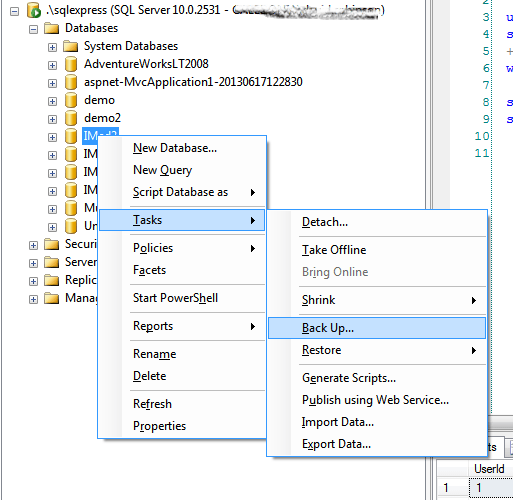
- With SQL Server Management Studio open right-click the database to be backed up.
- On the context menu select Tasks > Back Up
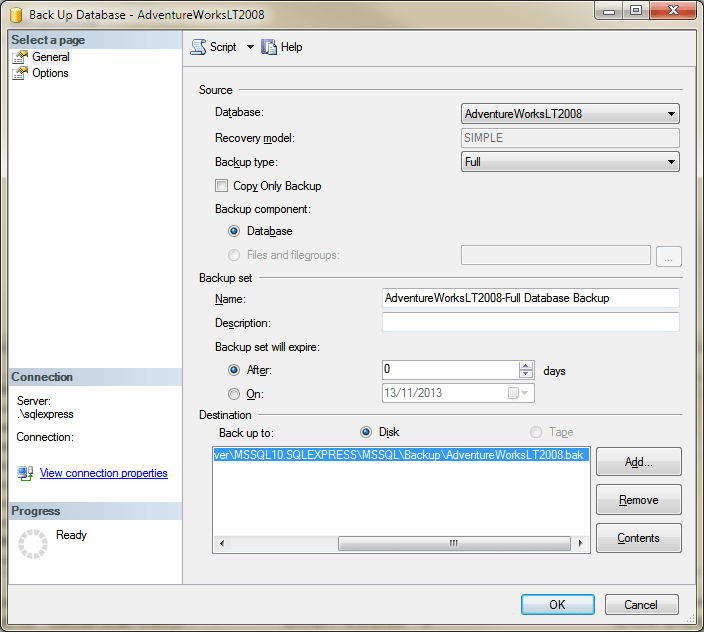
- On the backup dialog confirm the desired database is selected from the dropdown.
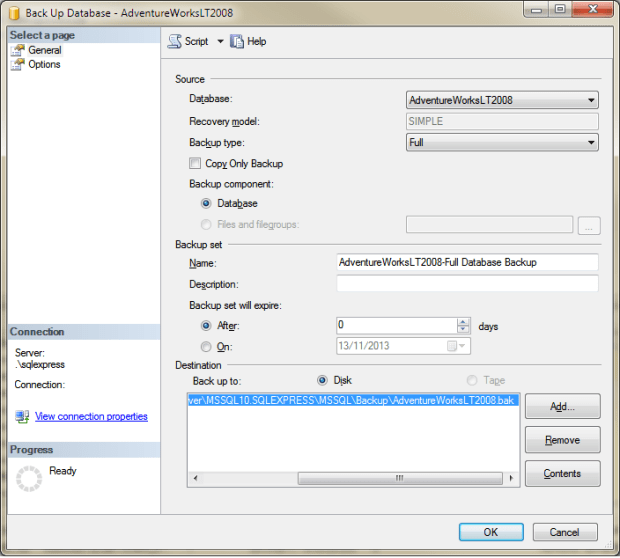
- In the Destination section, select the Disk option and click the Add Button. Specify the backup filename.
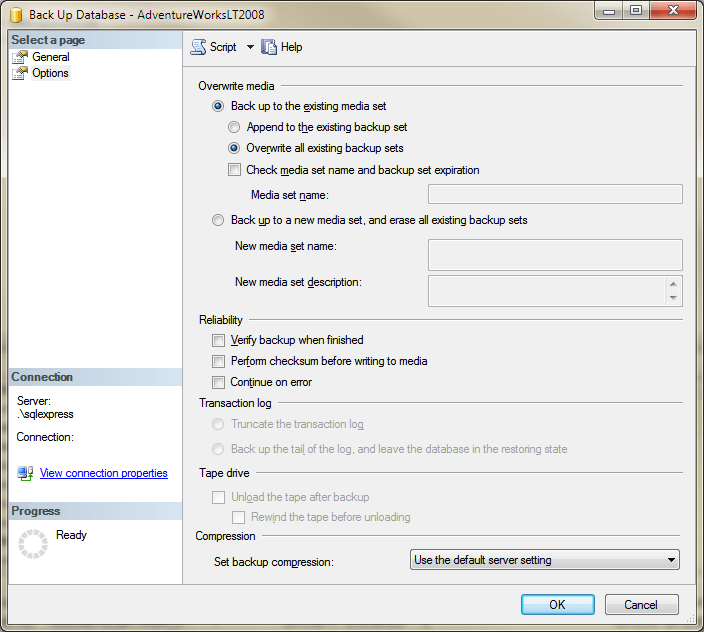
- Select Options from the navigation menu on the left. Select the Overwrite all existing backup sets option under Overwrite media group.
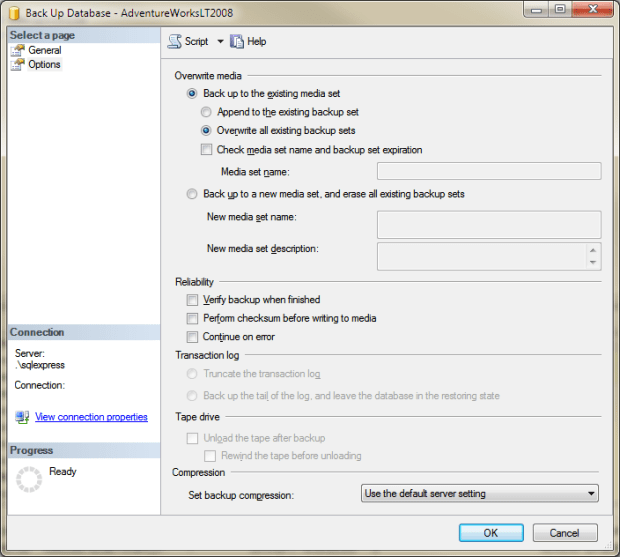
- Select the Verify backup when finished box in the Reliability section.
- Click OK.
- A summary of the backup settings will be displayed summarising the options chosen.
That is it in the simplest form. There are many other options to choose once you get into it.
