Massive Selection of Microsoft eBooks

There are millions of ebooks available for download on the internet and not all of them are available legally. However, Eric Ligman (Microsoft Senior Sales Excellence Manager) has compiled a massive list of freely, and legally, available Microsoft ebooks on his blog. They cover a large range of topics including, but not limited to

  • Windows 7
  • Windows 8
  • Windows 8.1
  • Office 2010
  • Office 2013
  • Office 365
  • SharePoint 2013
  • Dynamics CRM
  • PowerShell
  • Exchange Server
  • Lync 2013
  • System Center
  • Azure
  • Cloud
  • SQL Server
  • ASP.NET
  • C#

They are all available by permission of the copyright license/owner which may change in the future. Fot this reason I am not linking directly to any but to view the full list go here: largest-collection-of-free-microsoft-ebooks-ever

Click here for other posts relating to free books.

ASP.NET Conditional Required Field Validation on Client and Server Side

If you have a user input form on an ASP.NET site a RequiredFieldValidator will ensure the user enters a value in the associated field before the form can be submitted to the server.
On more complex forms one field may only be required depending on the value or selection of another field. A RequiredFieldValidator cannot be used as the associated field will always expect user input irrespective of any other field values. A CustomValidator can be used to customise the validation on either the client side, server side or both.

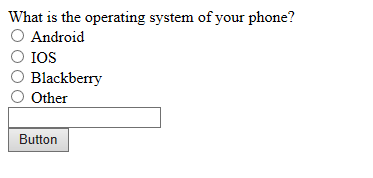
First we need an input form. If the Other radio button is selected a value must be entered in the textbox.
conditional-validation
Here is the full html for the above form. The radio button group consists of individual radio buttons but a RadioButtonList would work too.

<form id="form1" runat="server">
<div>
 <asp:Label runat="server">What is the operating system of your phone?</asp:Label>
 <div>
 <asp:RadioButton ID="AndroidRadioButton" ClientIDMode="Static"
 runat="server" ValidationGroup="PHONEGROUP" GroupName="PhoneOSGroup" />
 <asp:Label ID="Label1" runat="server">Android</asp:Label>
 </div>
 <div>
 <asp:RadioButton ID="IOSRadioButton" ClientIDMode="Static"
 runat="server" ValidationGroup="PHONEGROUP" GroupName="PhoneOSGroup" />
 <asp:Label ID="Label2" runat="server">IOS</asp:Label></div>
 <div>
 <asp:RadioButton ID="BlackberryRadioButton" ClientIDMode="Static"
 runat="server" ValidationGroup="PHONEGROUP" GroupName="PhoneOSGroup" />
 <asp:Label ID="Label3" runat="server">Blackberry</asp:Label>
 </div>
 <div>
 <asp:RadioButton ID="OtherOSRadioButton" ClientIDMode="Static"
 runat="server" ValidationGroup="PHONEGROUP" GroupName="PhoneOSGroup" />
 <asp:Label ID="Label4" runat="server">Other</asp:Label><br />
 <asp:TextBox runat="server" ID="OtherOSTextBox" ClientIDMode="Static"></asp:TextBox>
 <asp:CustomValidator ID="OtherOSValidator" ClientIDMode="Static"
 runat="server" Display="Dynamic" Text="Specify Phone OS"
 ClientValidationFunction="PhoneOSValidation"
 OnServerValidate="PhoneOSValidation" ValidationGroup="PHONEGROUP">
 </asp:CustomValidator>
 </div>
 <asp:Button ID="GoButton" runat="server" Text="Button" ValidationGroup="PHONEGROUP"/>
</div>
</form>

On the custom validator the ClientValidationFunction attribute specifies which javascript method to call to validate the field.

<script type="text/javascript">
    function PhoneOSValidation(Source, args) {
        args.IsValid = true;
        var otherOSRadio = document.getElementById("OtherOSRadioButton");
        var otherOS = document.getElementById("OtherOSTextBox");
        if (otherOSRadio.checked) {
            args.IsValid = ( otherOS.value != "")
        }
    }
</script>

The OnServerValidate attribute specifies which server side code behing method to call to validate the user input.

protected void PhoneOSValidation(object source, ServerValidateEventArgs args)
{
    args.IsValid = true;
    if (OtherOSRadioButton.Checked)
    {
        args.IsValid = (OtherOSTextBox.Text.Length >= 1);
    }
}

If the client side PhoneOSValidation javascript method returns false the form will be invalid and will not be submitted.
If client side validation passes the server side PhoneOSValidation method in the code behind will be called when the page is submitted to the server. Because of the server validation you do not really need the client validation but it certainly doesn’t hurt.

In the button click event checking the Page IsValid property will be true if the form validation passes.

protected void GoButton_Click(object sender, EventArgs e)
{
    if (Page.IsValid)
    {
 
    }
}

Using Configuration to Control When to Show Debug Javascript Alerts

It can sometimes be frustrating constantly changing alert messages when debugging javascript. One way around this is to read the debug setting from the web.config file.

<compilation debug="true" targetFramework="4.0" />

Create a variable in the javascript and initialise with the debug value.

var isDebug = ("@HttpContext.Current.IsDebuggingEnabled".toLowerCase() == 'true');

In the code at various places check the isDebug variable and display debug alerts as required, or some other action if needed.

if(isDebug)
{
    alert( // your message here );
}

When deployed to a production environment, presuming the debug setting is not there the alerts will not be displayed.

MVC Page Refresh After Ajax Call

So the page needs to refresh after an ajax call…..

In the controller action build the redirect url and include any route parameters that are needed. The Url is returned in the Json object to the calling javascript along with any other values e.g. the result of a database update.

[HttpPost]
public ActionResult Cancel( //parameters here )
{
    var redirectUrl = new UrlHelper(Request.RequestContext).Action("Index", "user", new { } );

    try
    {
        // perform some action
    }
    catch (Exception)
    {
        return Json(new { Url = redirectUrl, status = "Error" });
    }
                
    return Json(new { Url = redirectUrl, status ="OK" });
}

In the Ajax call check the returned data from the action method. If the action was successful redirect, if not display a message or something else if you need.

var UserModel = {
    // initialise model fields
};

$.ajax({
    url: "@Url.Content("~/user/cancel")",
    data: JSON.stringify(UserModel),
    type: 'POST',
    contentType: 'application/json; charset=utf-8',
    success: function (data) {
        if (data.status === 'OK') {
            window.location.href = data.Url
        }
        else {
            alert("The status cannot be updated at this time");
        }
    }
});

Thanks for reading.

Differences Between $(document).ready and $(window).load

I am aware the differences between $(document).ready and $(window).load have been discussed numerous times already, maybe done to death in some circles. When I carried out my own investigation into these events I received different results in different browsers. From now on I will refer to document.ready and window.load rather than the full syntax.

Regarding document.ready

  • The event executes when the DOM is loaded. It is possible some elements i.e. images have not finished loading at that point.
  • They are additive so you can have multiple document.ready declarations on your page.
  • It works across platforms.

As for window.load

  • It is fired after the full page, including the images, has loaded.
  • Will fire after document).ready.

For the first tests I started off with a simple test page

<!DOCTYPE html>
<html xmlns="http://www.w3.org/1999/xhtml">
<head>
    <title>Page Test</title>
</head>
<body>
loaded
</body>
</html>
<script src="//ajax.googleapis.com/ajax/libs/jquery/1.11.0/jquery.min.js"></script>
<script type="text/javascript">

    $(window).load() {
        alert("load");
    }

    $(document).ready() {
        alert("ready");
    }
</script>

When I loaded the page in IE8 and Chrome the alerts were displayed in the order they are in the code. So if window.load is first in code the “Load” alert will display first followed by the “ready” alert. If I swap the events around so the document.ready is first in code the “ready” alert will display first followed by the “Load” alert.

These results did not match my expectations. I decided to do more detailed tests with the page below.

<!DOCTYPE html>
<html xmlns="http://www.w3.org/1999/xhtml">
<head>
    <title>Page Test</title>
</head>
<body>
Hello
</body>
</html>

<script src="//ajax.googleapis.com/ajax/libs/jquery/1.11.0/jquery.min.js"></script>
<script>
    $(window).load(function () {
        alert("window load fired!");
    });

    $(document).ready(function () {
        alert("second document ready fired!");
    });
</script>
<script>
    window.onload = function () {
        alert("javascript onload fired!");
    }

    $(document).ready(function () {
        alert("document ready fired!");
    });
</script>

I loaded the page in IE8, IE11 and Chrome. In all cases the document.ready events fired before the window load events.  Specifically they were fired in the following order.

second document ready fired!
document ready fired!
window load fired!
javascript onload fired!

Now if I change the order of the script blocks containing the events like so;

<script>
    window.onload = function () {
        alert("javascript onload fired!");
    }

    $(document).ready(function () {
        alert("document ready fired!");
    });
</script>
<script>
    $(window).load(function () {
        alert("window load fired!");
    });

    $(document).ready(function () {
        alert("second document ready fired!");
    });
</script>

The order which the events are fired changes slightly to;
document ready fired!
second document ready fired!
javascript onload fired!
window load fired!

Again the document.ready events fired before the window load events. For one final test with this page I moved the script blocks in to the head section. When the page loaded the results were the same.

At this point I felt the need to return to the simple page and carry out the first test again in the same browsers as before. The results were the same as before. The document.ready event was fired first when it was first in the code and the window.load event fired first when it was first in the code. I cannot explain why this is happening.

This demonstration has been helpful to me in understanding how the document.ready and window.load events work, and hopefully you have found it useful too.